
Record it once. Get a manual people actually follow.
Sopycat watches the task like a colleague looking over your shoulder, and writes down every step with a picture of it. You just do your job.
Step 1
Recording is just doing the task
Press Record a task, name it if you like, and work the normal way. Sopycat captures the screen, every click and everything you type. Got two screens? You pick which one.
- A small black bar sits at the top of the screen and never appears in the recording. Drag it anywhere, or send it to the bottom.
- The bar names each click as you make it. If one looks wrong, simply click it again.
- Mark this spot (Ctrl+F8) turns any moment into its own step. Stop (Ctrl+F9) works from any program.
- Talk while you work and every step gets its own clip of your voice. Your words can even help write the step.
- Made a mess? Start over begins again from scratch, and the × throws the recording away.
Step 2
Steps named the way you would say them
Most tools write “Click here” under a screenshot. Sopycat asks Windows what was under the pointer, reads the screen when a program does not say, and checks every name against a dictionary before using it.
A window title, a whole page, or what you typed into a box is never used to name a click, and a smudge of pixels never becomes a word.
Step 3
Change anything. Nothing is locked.
Every change saves itself a moment after you stop typing, and every version is kept, so you can edit freely.
- Click a step's title or text and type. Bold, lists and links are there when you need them.
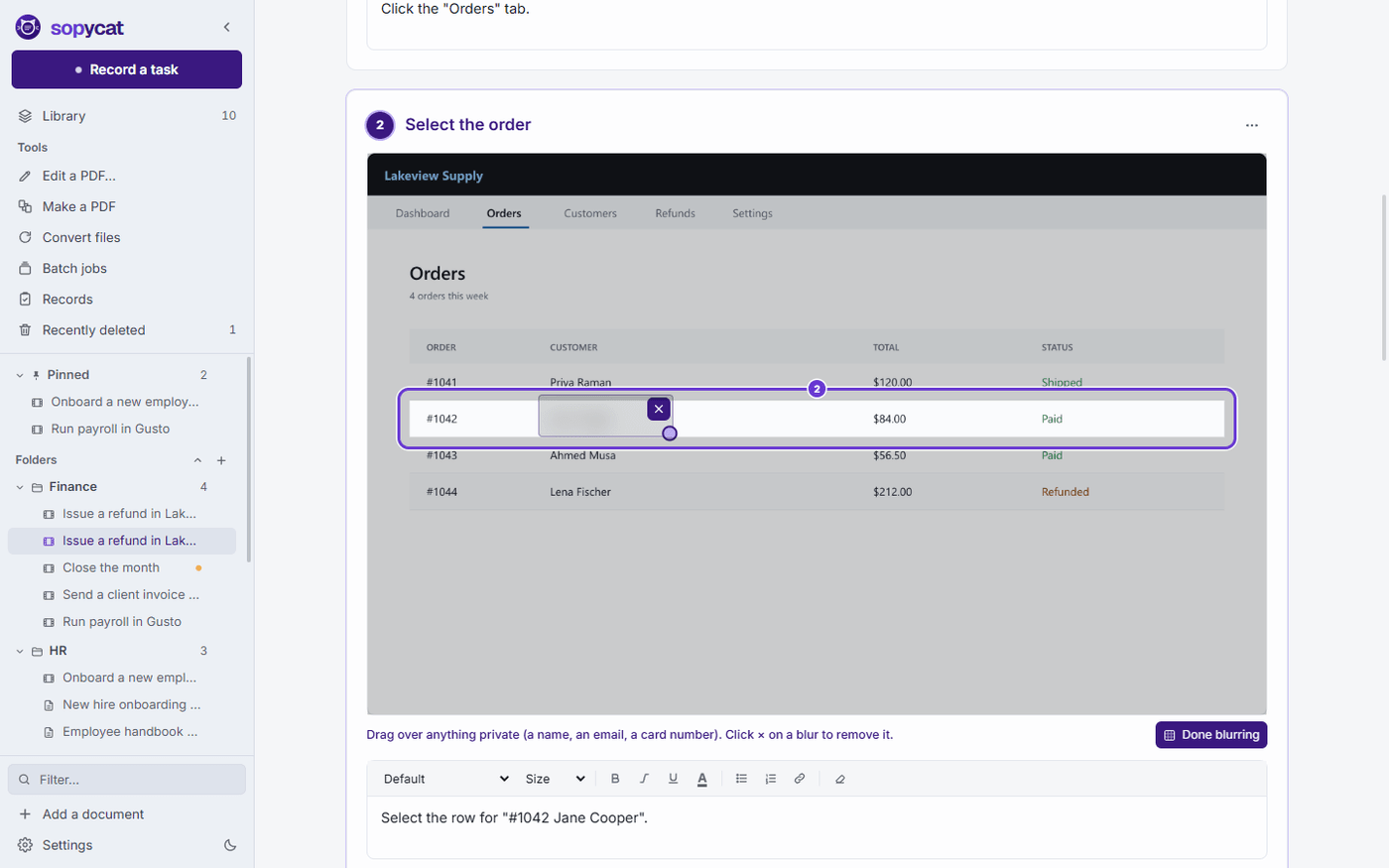
- Drag the purple box to the right spot, or add one to a step that has none.
- Blur a name, an email or a card number. Sopycat can blur them for you as it writes.
- Pick a better picture from any moment of the recording, or paste in your own screenshot.
- Split a step, merge two, reorder them, or add steps by hand.
- Record extra steps into the same manual later, right where they belong.
Step 4
Share it the way people like to learn
Every format below comes from the same manual, so there is one thing to keep current.
PDF and Word
A tidy document with the title, a short summary and every step with its picture. The Word file keeps headings, lists and links, so it drops straight into your handbook.
One web page
A single file with the pictures built in. It opens in any browser, on any phone, with nothing to install. Perfect for email.
A tutorial video
Your recording and your narration, with a ring on every click and a caption for every step. Saved as an MP4 with a chapter per step.
Follow along
A small window that stays on top, one step at a time, with each step's own clip. Tick steps off as you go, and the run is logged.
You decide who writes the sentences
Finding the steps and taking the pictures always happens on your computer. Only the wording gives you a choice.
Simple sentences
Short, plain and correct. The right fit for most offices.
Smarter writing, on this PC
More natural sentences with nothing leaving the PC. Needs 6 to 12 GB of memory.
Sopycat account
The most natural writing. Only the pictures being described are sent, and they are not kept.
Your own Anthropic key
For technical teams who already have one. Usage is billed to that account.
If an online service cannot be reached, Sopycat writes that part with simple sentences and tells you. A recording is never lost because a server was down.
Keep it true after the software changes
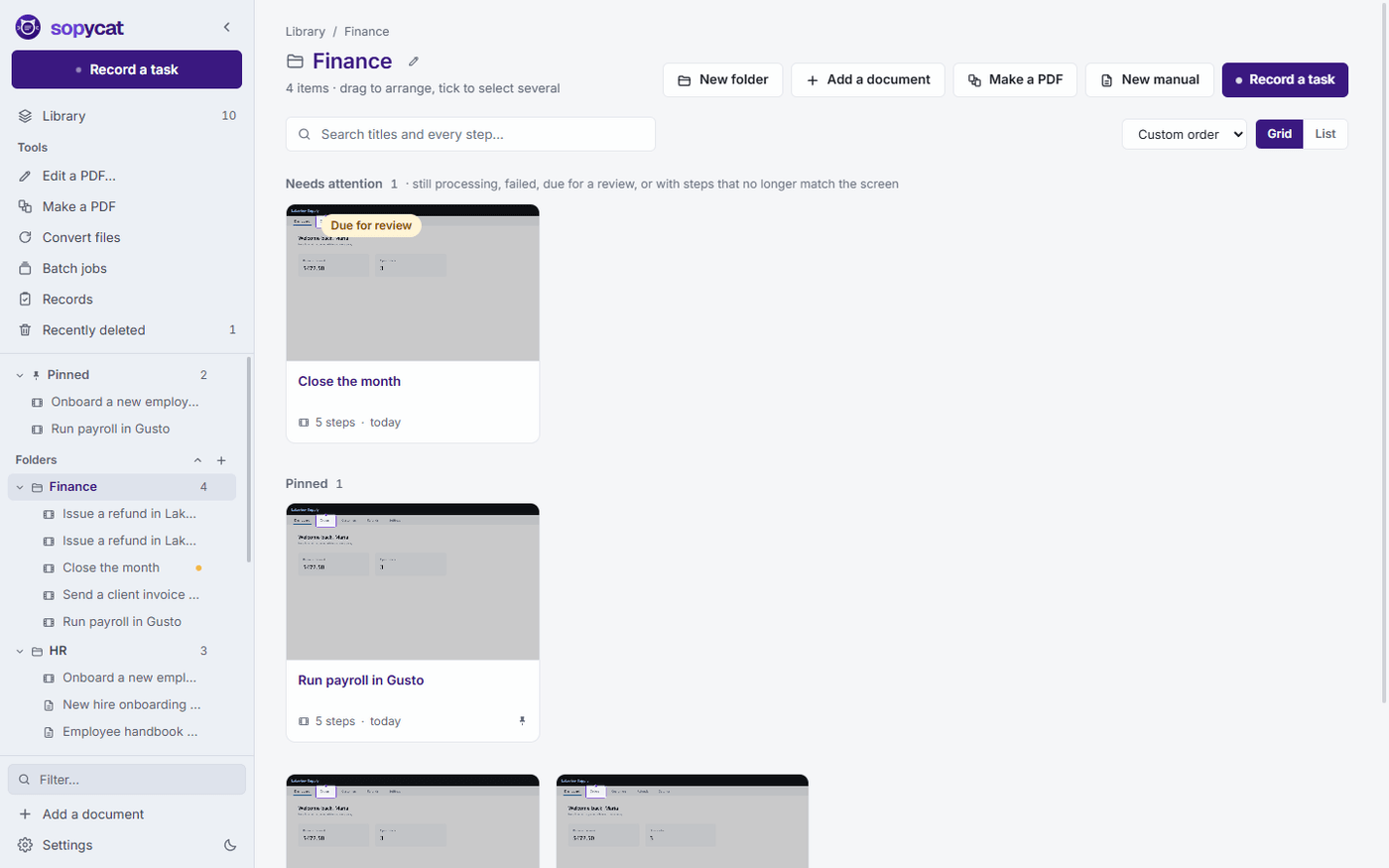
- Give a manual an owner and a date to check it again. When the date comes, it waits under Needs attention.
- Compare the steps with the screen photographs the program as it is today and marks the steps that moved or look different.
- Earlier versions are kept automatically, and even putting one back can be undone.
Try it on a task you do this week
Pick the one you are tired of explaining. Record it once, and never explain it again.
14 days free, every feature. Nothing to sign up for.