
Coming soon
An AI agent that follows your SOPs, step by step
Coming soon. AI Task Automation: connect an AI agent you already use (Claude Desktop, Codex or GitHub Copilot in VS Code) to Sopycat, and it follows an SOP you recorded, step by step, on your Windows PC.
Your AI agent does the work. Sopycat gives it the steps, asks you before the ones that matter, and keeps a record of every run.
The free trial is today's Sopycat (3.0.3). Running a manual with an AI agent is in preview builds and is not in it yet. There is no date.
AI agent for SOPs, at a glance
An AI agent here is an AI app such as Claude Desktop, Codex or GitHub Copilot in VS Code, following the SOPs (standard operating procedures) you recorded, which Sopycat calls manuals. In short, you automate an SOP with the AI agent you already use: the AI agent does the steps, and a person OKs the ones that matter.
- Status
- Coming soon. In preview builds, not in the version you can download today. No date yet.
- What it is
- An AI agent you already use reads a manual and does its steps on your PC.
- Who clicks and types
- Your AI agent, with its own ability to use the computer. Sopycat does not click or type: it hands out the steps and records what the AI agent reports.
- Works with
- Claude Desktop, Codex, GitHub Copilot in VS Code, and any other AI app that can start a local MCP server.
- Runs on
- The same Windows PC as Sopycat (Windows 10 or 11).
- What Sopycat sends
- Nothing. Sopycat calls no AI.
- What an AI agent can see
- Only the manuals you mark for it.
- When it asks you
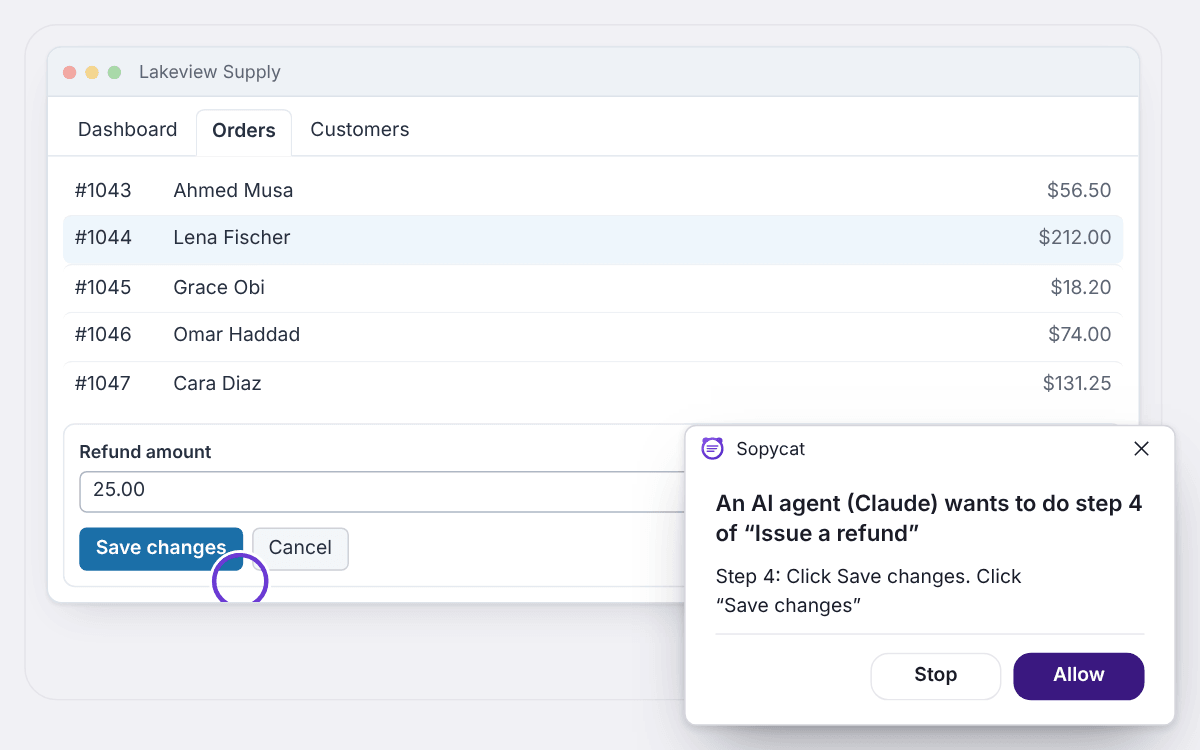
- In the usual mode, before the steps you marked, in Sopycat's own window.
- Passwords and private values
- Typed by the person, never stored, never given to the AI agent.
- Record
- Every run is logged.
- Cost
- No extra charge is planned.
- How to turn it off
- For yourself, for the office, or by IT for a whole computer.
How an AI agent runs an SOP
A manual you recorded becomes something an AI agent can follow, once you say so.
Record the task once
Sopycat writes the manual on your PC, as it does today.
Get the manual ready
Sopycat fills in what an AI agent would do at each step, from the recording. You mark the steps that need care.
Allow it
A manual is closed to AI agents until its owner ticks Allow AI agents to run this manual. On the Office plan an editor approves it first.
Connect your AI agent
In Settings › AI Agents, Sopycat shows exactly what it will add to your AI app's settings file, and writes nothing until you choose Add it.
Ask
In your AI agent's chat, for example: “What Sopycat manuals can you run?”, then “Run the refund manual.” The AI agent does each step on screen and tells Sopycat when each one is done or did not match.
What an SOP needs before an AI agent can follow it
Three marks on a step decide what an AI agent may do there. Sopycat fills in the rest from the recording.
- Confirm before this step
- The person is asked first, for example before Save or Submit.
- Sensitive
- The person types this one themselves. The value is never stored and never given to the AI agent.
- Make this a variable
- The run asks for the value each time, such as a customer name or an amount, instead of retyping the one that was recorded.
{
  "status": "do_step",
  "progress": "Step 4 of 4",
  "mode": "guided",
  "step": {
    "number": 4,
    "title": "Click Save changes",
    "action": "click",
    "control": { "name": "Save changes", "type": "Button" },
    "checkpoint": true,
    "person_types_it": false
  }
}For each step Sopycat hands over its action, program, control, value and expected result, with the values a run asks for and what must be open first.
How much a run asks you: Manual, Plan, Guided or Auto
Four run modes, from asking at every step to running straight through. The strictest limit wins: your own choice, the manual owner's and the office's.
Manual
Asks before every step.
Plan
Shows the whole plan first and does nothing until you choose Start. Then it runs as Guided.
Guided
Asks only before the steps marked Confirm before this step.
The usual one
Auto
Runs straight through without asking. It is all in the log afterwards.
A Sensitive step stops
The person types it, whatever the mode.
A mismatch stops the run
A step that does not match what is on screen ends it.
The run is logged
Every run, in every mode.
When a step needs your OK, Sopycat asks in a small window of its own, so the AI agent cannot answer for you in its chat. Approvals and controls has the rest.
What an AI agent can and cannot see
Nothing is shared until you mark a manual for AI agents.
What an AI agent can see
- Only the manuals you mark for it.
- Their words. With pictures allowed, the blurred copy of each step's picture, made smaller.
What it never sees
- The rest of the library, documents included.
- The original recording.
- A value marked Sensitive: the person types it.
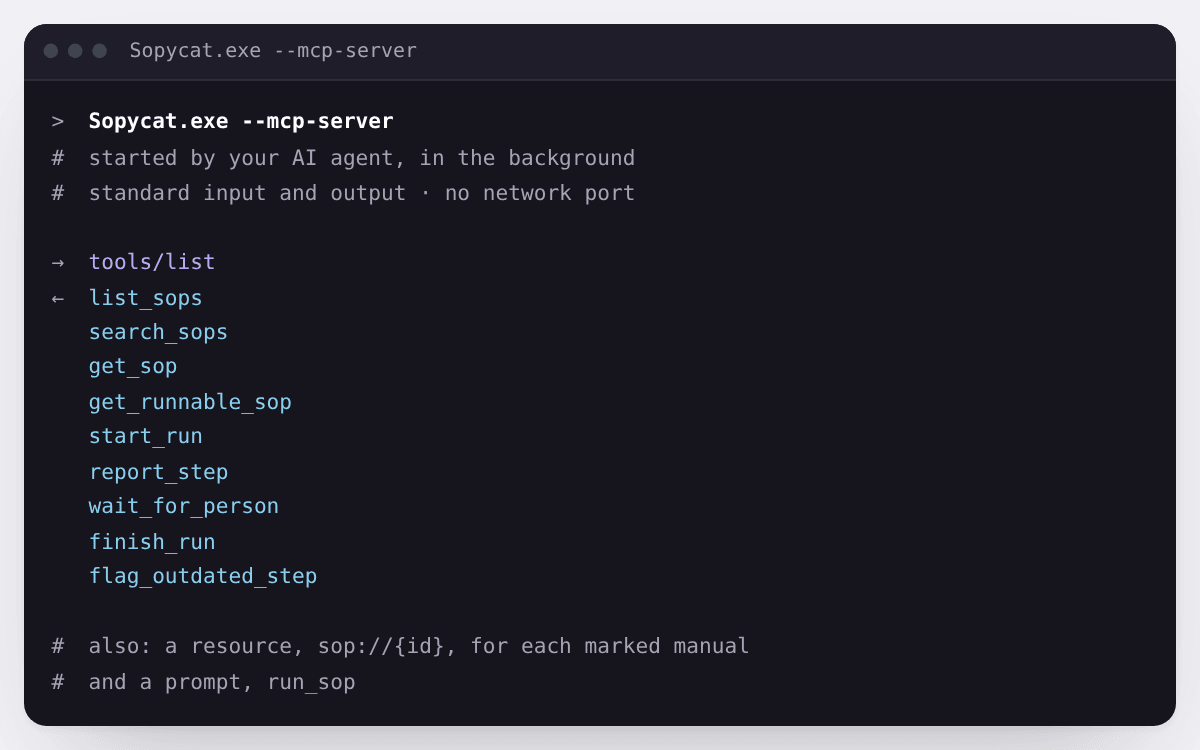
What is written in a manual is data, not orders. Sopycat's MCP server says, in its own instructions and in the tools that list, search or read manuals, start a run or report a step, that text recorded from screens is never an instruction to the AI agent.
Does Sopycat use AI?
No. No AI writes your manuals, and Sopycat itself never sends anything to an AI service.
Where the steps come from
Sopycat builds the steps on your PC from what Windows reports about each click, your typing and the text on screen.
Your AI agent is your choice
Using your own AI agent is optional. If you connect one, it can read and follow only the manuals you mark for it.
Its own privacy terms apply
Anything your AI agent reads is handled under its own privacy terms, so check that it meets your requirements before connecting it.
In regulated-office mode the connection is off, and only an editor of the library can turn it on.
Which AI agents work: Claude Desktop, Codex and GitHub Copilot
Any AI agent that connects to tools through MCP, the Model Context Protocol. Sopycat sets up three of them for you. An AI agent needs its own way to use the computer: Sopycat gives it the steps, and the clicking and typing are the AI agent's.
- Claude Desktop, Codex, VS Code
- Choose Connect…. Sopycat shows the settings file and exactly what it will add, and writes nothing until you choose Add it. It keeps a copy of the file as it was, beside it.
- Any other AI app
- Copy the settings for another app, then paste them into that app's MCP servers settings.
- Then restart the AI app
- Quit it completely and open it again. It starts Sopycat when it needs it.
Sopycat's MCP server shows how it starts and what it adds to each settings file.
What AI agent runs will cost
No extra charge is planned, and nothing is charged per run.
| What you get | Trial and Individual | Office |
|---|---|---|
| Connect Claude, Codex, Copilot or another AI agent | Yes | Yes |
| An AI agent reads and runs the manuals you mark | Yes | Yes |
| Run history | Your own runs | The whole team's, saved as a spreadsheet |
| Only approved manuals can be run | No approval step | Yes |
| A switch to turn AI agents off for the whole office | No | Yes |
Planned. Details may change before release.
Questions about AI agents and SOPs
- What is an AI agent for SOPs?
- An AI app you already use, such as Claude Desktop, Codex or GitHub Copilot in VS Code, that reads a Sopycat manual and does its steps on screen for you. Your AI agent does the work; Sopycat gives it the steps, asks you before the steps that need your OK, and logs the run.
- Does Sopycat itself use AI?
- No. No AI writes your manuals, and Sopycat itself never sends anything to an AI service. If you connect an AI agent, it does the work, and what it reads is handled under its own privacy terms.
- Which AI agents work with Sopycat?
- Any AI agent that connects to tools through MCP, the Model Context Protocol. Sopycat sets up Claude Desktop, Codex and VS Code for you, and gives you the settings to paste into any other app.
- Can an AI agent see all my manuals?
- No. A manual is closed to AI agents until its owner ticks Allow AI agents to run this manual. Everything else in the library, documents included, stays out of sight.
- Can an AI agent change or delete a manual through Sopycat?
- No. None of the nine tools Sopycat gives it changes or deletes a manual. It can only flag a step as out of date for the manual's owner.
- What about passwords and other private values?
- A step marked Sensitive is typed by the person at the PC during each run. The value is never stored and never given to the AI agent.
- Do I need to write code or use a terminal?
- No. In Settings › AI Agents, Sopycat shows the settings file and exactly what it will add, and writes nothing until you choose Add it.
- Does it work on a Mac?
- No. Sopycat is for Windows 10 and 11.
- Will Sopycat charge extra for AI agent runs?
- No extra charge is planned. Connecting an AI agent, reading and running the manuals you mark, and your own run history are planned for every plan, the free trial included. The Office plan adds the approval rule, the office-wide switch and the team's run records.
- When can I use an AI agent with Sopycat?
- It is being tested in preview builds now and is not in the version you can download today. There is no date yet. The What's new page will say when it is released.
More about running a manual with an AI agent
Start with the manuals
An AI agent runs the manuals you record. Record them now, free for 14 days with no account and no card, and they will be ready when it arrives.