
AI Task Automation / Controls
Coming soon
AI agent controls that keep a person in the loop
Coming soon. An AI agent you connect to Sopycat can run only the manuals a person has allowed, asks before the steps that person marked, never sees what was marked Sensitive, and leaves a record of every run.
The office, and IT, can turn it off.
The free trial is today's Sopycat (3.0.3). Running a manual with an AI agent is in preview builds and is not in it yet. There is no date.
A person in the loop, at a glance
Human in the loop here means that when an AI agent follows one of your SOPs (standard operating procedures), the run stops for a person at the steps that person marked. These are the controls.
| Control | Who sets it | What it does |
|---|---|---|
| Allow AI agents to run this manual | The manual's owner | A manual is closed to AI agents until this is ticked |
| Approve this version (Office plan) | An editor of the library | Any change to the steps closes the manual until it is approved again |
| Confirm before this step | The manual's owner | The run stops for an OK, in Sopycat's own window, in every mode but Auto |
| Sensitive | The manual's owner | The person types the value. It is never stored and never given to the AI agent. |
| Run mode | The person, the manual's owner, the office | Manual, Plan, Guided or Auto. The strictest wins. |
| Off switches | The person, an editor, IT | Any one of the three turns AI agents off |
| Records | Kept by Sopycat | Every run, with who it was for, which AI agent and which mode |
Who can let an AI agent run a manual
A manual is closed to AI agents until a person opens it. On the Office plan it must also be approved.
- Allow AI agents to run this manual
- Only a person can tick it. Until then the manual is closed to AI agents.
- Approve this version (Office plan)
- One of the library's editors chooses it, and it goes in the audit log with who and when.
- A change to the steps closes it
- A change to the steps after approval closes the manual to AI agents until someone approves it again. A new title or picture does not. A copy of a manual starts closed.
- Individual plan and the trial
- There is no approval step: the person marks their own manuals.
Where a run stops for a person
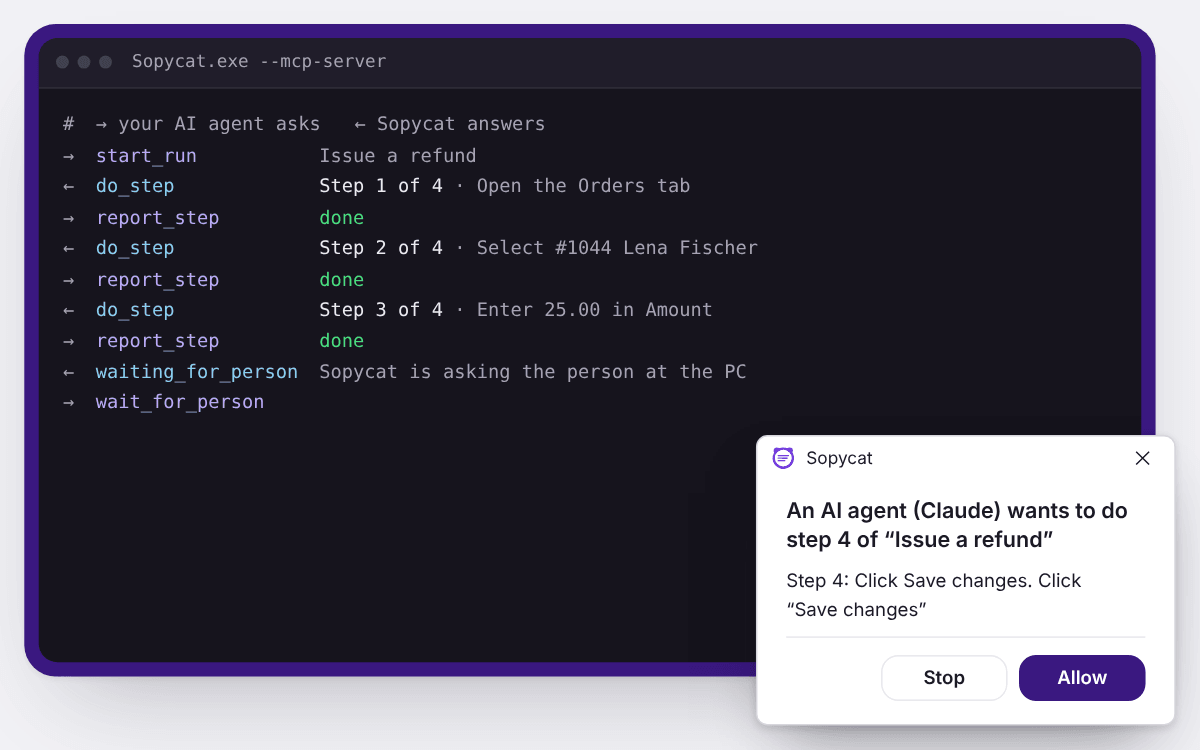
The manual's owner decides where. Sopycat asks in its own window, and the AI agent waits.
Confirm before this step
Stops the run for an OK, for example before Save or Submit.
Sensitive
The person types the value at the PC. It is never stored and never given to the AI agent.
The AI agent cannot answer for you
Sopycat asks in its own window, and the AI agent waits until you answer there. It cannot answer in its chat.
A mismatch stops the run
A step that does not match what is on screen stops the run and is flagged for the manual's owner, with what the AI agent saw. Mark fixed clears the flag.
Who sets the limit: Manual, Plan, Guided or Auto
Runs can be Manual, Plan, Guided or Auto. The strictest of these limits wins.
Manual
Asks before every step.
Plan
Shows the whole plan first and does nothing until you choose Start. Then it runs as Guided.
Guided
Asks only before the steps marked Confirm before this step.
The usual one
Auto
Runs straight through without asking. It is all in the log afterwards.
- The personTheir own choice in Settings › AI Agents › Run Mode.
- The manual's ownerThe most hands-free run they allow for that manual.
- The officeThe office's limit, on the Office plan.
- Regulated-office modeCaps every run at Guided.
An AI agent may ask for a stricter mode, never a looser one. Auto runs straight through without asking, even at a step marked Confirm before this step; a Sensitive step still stops for the person.
How to turn an AI agent off
Any one of these turns AI agents off, and the AI agent is told why and where to change it.
- For yourself
- Turn off Let AI agents use Sopycat in Settings › AI Agents.
- For the whole office (Office plan)
- An editor turns off Allow AI agents in this office. It is kept in the shared library and goes in the audit log.
- By IT, for everyone on a computer
- A Group Policy setting. People cannot turn it back on.
Regulated-office mode
For offices that handle patient, client or student records.
Off until an editor says so
AI agents stay off until an editor turns on Allow AI agents in this office.
At most Guided
Runs are then at most Guided.
Pictures are checked again
Pictures are looked over again for email addresses and phone, card and social-security numbers, which are blurred before an AI agent sees them.
Nothing unchecked is sent
A picture that cannot be checked is not sent.
A record of every AI agent run
AI agent runs are kept with the office's other records.
- Who, and through what
- Each run shows who it was for, and through which AI agent and mode, for example “through Claude (AI agent, Guided)”.
- Run by (Office plan)
- Picks out AI agent runs, and the list saves as a spreadsheet (CSV).
- Without the Office plan
- Records shows your own AI agent runs.
- Flagged steps
- A step an AI agent found out of date says so on the manual, with who flagged it and what they said.
Training records is where the office's other records are.
Questions about approvals and controls
- What does "human in the loop" mean for an AI agent here?
- A run stops for a person at the steps the manual's owner marked. Sopycat asks in a small window of its own, and the AI agent waits. A step marked Sensitive is typed by the person.
- Can an AI agent approve a manual, or allow itself to run one?
- No. Only a person can tick Allow AI agents to run this manual, and on the Office plan only someone listed as an editor of the library can approve it. Any change to the manual's steps after that closes it to AI agents until it is approved again.
- Can the AI agent answer a confirmation for me?
- No. When a step needs your OK, Sopycat asks in a small window of its own on screen, and the AI agent waits until you answer there. It cannot answer in its chat.
- What happens when the screen does not match the manual?
- The run stops, and the step is flagged on the manual with what the AI agent saw, so its owner can fix it. Mark fixed clears the flag.
- Does Auto mode skip every check?
- It skips the OKs, not the stops. Auto runs straight through without asking, even at a step marked Confirm before this step. In every mode a Sensitive step still stops for the person, a step that does not match what is on screen stops the run, and the run is logged.
- Is there a record of what an AI agent did?
- Yes. Every run is kept in Records. On the Office plan it lists the whole team's runs, each with who it was for and through which AI agent and mode, and the list saves as a spreadsheet (CSV). Without the Office plan you see your own AI agent runs.
- Is approval a security lock?
- It is a process control, not cryptographic protection. It records who approved which version and closes the manual when it changes. Like everything in a shared library, it relies on who can write to the library folder.
- Does this make my AI agent compliant with HIPAA or similar rules?
- No. Sopycat holds no HIPAA certification and signs no business associate agreement. Anything your AI agent reads is handled under that AI app's own terms, so check that it meets your requirements before connecting it. In regulated-office mode AI agents stay off until an editor turns them on.
- How do I turn an AI agent off?
- For yourself, in Settings › AI Agents. For the whole office, an editor turns off Allow AI agents in this office. For everyone on a computer, IT sets the Group Policy, and people cannot turn it back on.
- When will these AI agent controls be available?
- It is in preview builds now and is not in the version you can download today. There is no date yet. The AI Task Automation page says more.
More about running a manual with an AI agent
Start with the manuals
An AI agent runs the manuals you record. Record them now, free for 14 days with no account and no card, and they will be ready when it arrives.