
Turn screenshots into a step-by-step guide
Turn screenshots into a step-by-step guide, free. Drop in the screenshots of a task, or paste them one at a time. Say what to do in each step, put them in order, and save a numbered manual as a PDF. Nothing is uploaded.
Runs in this browser tab. Your file is not uploaded: there is no server to send it to.
Drop screenshots here
Or paste one with Ctrl+V. They stay in this tab.
How to turn screenshots into a step-by-step guide
- 1
Drop your screenshots on the page, choose them, or paste one with Ctrl+V.
- 2
Write what to do in each step, and a note where one helps. Move steps up or down, or remove them.
- 3
Give the manual a title and press Save as PDF.
What the Sopycat app adds
- Record the task once: Sopycat takes the pictures and writes each step from what you clicked.
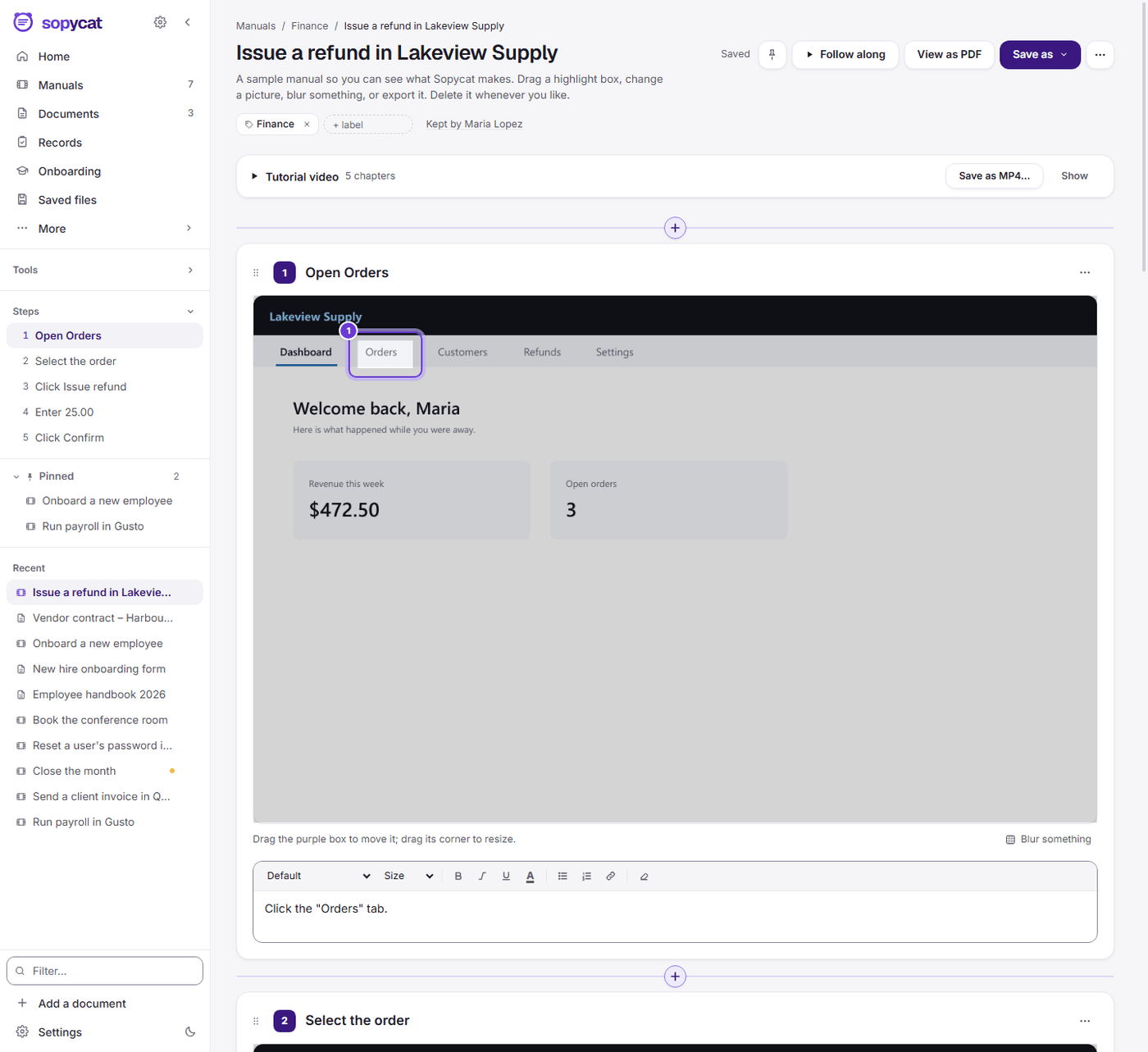
- The click is marked on every picture, with a box round the control.
- Blur a name, split or merge steps, or record one step again.
- Save as a PDF, a Word document, a web page or a video, or follow along one step at a time.
Or skip the screenshots: record the task and let Sopycat write the steps.
Questions about making a guide from screenshots
- Are my screenshots uploaded?
- No. The guide is put together by your browser, on your computer. There is no server behind this page that could receive a picture, and closing the tab discards everything.
- What does the PDF look like?
- A title, then each step with its number, what to do, an optional note and its picture, on Letter pages with page numbers. Each page's foot carries one small line, Made with Sopycat.
- Which pictures can I use?
- PNG and JPEG are used as they are. WebP, GIF and BMP are redrawn as PNG in your browser first. A screenshot on the clipboard can be pasted with Ctrl+V.
- Can it take the screenshots for me?
- A web page cannot see what you click in other programs, so here you bring the pictures. The Sopycat app records the task as you do it and writes each step itself, with the click marked on the picture.
- Can I save it as a Word file?
- Not here: this page saves a PDF. The Sopycat app saves a manual as a PDF, a Word document, a web page or a video.
- Is the screenshots-to-guide tool free?
- Yes. It is free, with no account and no limit on how often you use it.
Do the task once. Sopycat writes the manual.
The Windows app records what you do and turns it into a step-by-step manual, with a full PDF editor beside it. Everything stays on your computer.